Showing posts with label Tips. Show all posts

Sunday, 11 August 2024

10 steps to use chris titus tool in windows

 Chris Titus Tech's tool, known as "Titus Tool," is a script designed to debloat, optimize, and manage Windows settings efficiently. Here’s a step-by-step guide on how to use it:


### **Step 1: Download the Script**

1. Open a web browser and visit Chris Titus Tech's GitHub repository for the tool.

2. Download the latest version of the script. The repository is usually found at [ChrisTitusTech/Win10Script](https://github.com/ChrisTitusTech/win10script).


### **Step 2: Extract the Script**

1. If the script is downloaded as a zip file, extract it to a folder on your computer.


### **Step 3: Open PowerShell**

1. Right-click on the **Start Menu** and select **Windows PowerShell (Admin)**. This opens PowerShell with administrative privileges, which is required to run the script.


### **Step 4: Set Execution Policy**

1. Run the command:

   ```powershell

   Set-ExecutionPolicy Unrestricted -Scope Process

   ```

   This allows the script to run on your system.


### **Step 5: Navigate to the Script Folder**

1. Use the `cd` command to navigate to the folder where you extracted the script. For example:

   ```powershell

   cd C:\Path\To\Script

   ```


### **Step 6: Run the Script**

1. To execute the script, type:

   ```powershell

   .\win10debloat.ps1

   ```

   The script will start running, and a menu will appear with various options.


### **Step 7: Choose Desired Options**

1. The script will present you with a menu of options such as "Debloat Windows 10," "Remove OneDrive," "Change Privacy Settings," and more.

2. Select the desired options by typing the corresponding number or letter.


### **Step 8: Follow On-Screen Prompts**

1. Some options may require further input or confirmation. Follow the on-screen prompts to complete each action.


### **Step 9: Restart Your Computer**

1. After the script completes, it’s recommended to restart your computer to apply all changes.


### **Step 10: Review Changes**

1. After the reboot, review your system to ensure that all desired changes have been applied. You may need to tweak additional settings manually if necessary.


By following these steps, you can effectively use Chris Titus Tech's tool to optimize your Windows system.

Friday, 22 March 2024

10 Genius Computer Tips & Tricks You Need to Know Right Now!

 Are you ready to become a computer whiz? Whether you're a seasoned tech guru or just getting started with computers, these 10 tips and tricks will revolutionize the way you use your device. From speeding up your system to mastering keyboard shortcuts, we've got you covered. Let's dive in!


1. **Speed Up Your Startup**: Tired of waiting for your computer to boot up? Try disabling unnecessary startup programs. On Windows, open Task Manager (Ctrl + Shift + Esc), navigate to the Startup tab, and disable programs you don't need running at startup. On Mac, go to System Preferences > Users & Groups > Login Items to manage startup apps.


2. **Master Keyboard Shortcuts**: Save time and impress your friends by mastering keyboard shortcuts. Learn common shortcuts like Ctrl + C (copy), Ctrl + V (paste), and Alt + Tab (switch between open applications). Explore advanced shortcuts for tasks like taking screenshots, opening new tabs, and navigating windows.


3. **Customize Your Desktop**: Personalize your desktop to reflect your style and workflow. Organize icons into folders, change your wallpaper, and customize your taskbar or dock. On Windows, right-click the desktop and select Personalize. On Mac, go to System Preferences > Desktop & Screen Saver.


4. **Backup Your Data**: Don't risk losing precious files and photos. Set up automatic backups to keep your data safe. Use built-in backup tools like Windows Backup or Time Machine on Mac. Alternatively, consider cloud storage options like Google Drive, Dropbox, or iCloud for seamless backup and access.


5. **Declutter Your Hard Drive**: Is your computer running out of storage space? Clear out junk files and uninstall unused programs to free up disk space. Use disk cleanup tools like Disk Cleanup on Windows or Disk Utility on Mac to remove unnecessary files and optimize storage.


6. **Protect Your Privacy**: Safeguard your personal information and stay secure online. Use strong, unique passwords for each account and consider using a password manager to keep track of them. Enable two-factor authentication for an extra layer of security, and regularly update your antivirus software.


7. **Optimize Your Browser**: Boost your browsing experience with these optimization tips. Install ad blockers and browser extensions to enhance privacy and block intrusive ads. Use private browsing mode for sensitive tasks, and regularly clear your browser cache and cookies to improve performance.


8. **Master Task Management**: Stay organized and productive with effective task management techniques. Use to-do lists, calendar apps, and task management tools to prioritize tasks and stay on track. Experiment with productivity techniques like the Pomodoro Technique or time-blocking to maximize efficiency.


9. **Streamline File Management**: Keep your files organized and easily accessible. Create a logical folder structure to store documents, photos, and media files. Use file management tools like File Explorer on Windows or Finder on Mac to search for and organize files efficiently.


10. **Stay Updated**: Keep your computer running smoothly by staying up to date with software updates and system maintenance. Enable automatic updates for your operating system and applications to ensure you have the latest features and security patches. Regularly clean your computer's hardware and perform maintenance tasks like disk defragmentation (Windows) or disk repair (Mac).


There you have it! With these 10 tips and tricks, you'll be well on your way to becoming a computer wizard. So go ahead, try them out, and take your computer skills to the next level!

Unlock Your Creativity: Get 50GB Graphic Bundle for Just Rs. 100

Are you ready to take your creative projects to the next level without breaking the bank? We've got exciting news for you! We're thrilled to announce an exclusive offer that will revolutionize the way you approach design. For a limited time only, you can get your hands on a massive 50GB graphic bundle for just Rs. 100!


Here's what's included in this incredible bundle:

High-Quality Stock Photos: Access a vast library of stunning, royalty-free images to enhance your designs and captivate your audience.

Vector Graphics: Elevate your projects with professionally crafted vector graphics that are infinitely scalable and perfect for everything from logos to illustrations.

Icons and Symbols: Find the perfect icon or symbol for any occasion, whether you're designing a website, presentation, or app.

Textures and Patterns: Add depth and dimension to your designs with a diverse collection of textures and patterns that will make your work stand out.

Fonts and Typography: Explore a wide range of fonts and typography styles to ensure that your message is conveyed with clarity and style.

Photoshop Actions

Frames

and many more...

This graphic bundle is a treasure trove of resources that will inspire your creativity and streamline your workflow. Whether you're a graphic designer, web developer, marketer, or hobbyist, this bundle has something for everyone.

But wait, there's more! Not only are you getting access to this incredible collection of graphics, but you're also supporting a community of creators and designers. Your purchase helps us continue to curate and provide high-quality resources to aspiring artists and professionals alike.

So why wait? Seize this opportunity to supercharge your creative endeavors for just Rs. 100! scan the QR below to claim your 50GB graphic bundle now:

on payment description write your"Email ID" so that the bundle will be forwarded direct to your email


Don't miss out on this unbeatable offer. Get ready to unleash your creativity like never before with our exclusive graphic bundle. Grab it now and let your imagination soar!

Monday, 1 January 2024

How to Make a Zip Bomb in Windows


  • Step-1: Open any text editor and type Space ('  ') and save the file as 'a.txt'

  • Step-2: Copy and paste spaces (' ') as many times as possible until the file is of significant size (2 to 3MB). Then save the file.

  • Step-3: Make 100+ copies of 'a.txt' in the same folder.

  • Step-4: Open command prompt in the same folder and enter the command below to combine all the text files into one and save it as 'b.txt'.copy /b *.txt b.txt

  • Step-5: Repeat steps 3 and 4 to create an even larger text file of 2 to 3 GB and save it as 'c.txt'.

  • Step-6: Compress the text file 'c.txt' using WinZipWinRAR or 7-Zip and save it as 'smallbomb.zip'.

  • Step-7: Make several copies of 'smallbomb.zip' then add them all into one final archive and save it as 'bomb.zip' and your Zip Bomb is ready.

Wednesday, 19 April 2023

make money in 5 minute without investment


 It's very difficult to make money in just 5 minutes without any investment. However, here are a few options you could try:

Participate in online surveys: There are many websites that pay people to take surveys. You can sign up for free and complete surveys to earn money. However, you might not earn much in just 5 minutes.

Sell unused items: If you have unused items lying around, you could sell them on websites like eBay, Craigslist or Facebook Marketplace. You could take pictures of the items and list them for sale in just a few minutes.

Offer small services: You could offer small services like proofreading, data entry, or editing. You could create a profile on websites like Fiverr or Upwork and offer your services.

Participate in online contests: You could participate in online contests and win prizes. However, the chances of winning are low.

Remember, while these options may allow you to make some money in 5 minutes, they may not be sustainable or reliable sources of income. It's always better to invest time and effort into building a long-term source of income.

Sunday, 27 March 2022

Never Underestimate The Influence Of Apps To Help You Earn Money From Home.


To address the numerous issues associated with the work-from-home lifestyle, we've compiled a list of the best applications that can boost productivity while also allowing you to earn money from home. It may be difficult to believe, but the challenge in today's society is not how to make money at home, but how to make a good amount of money.


 Let's start with some work-from-home apps that can help you make some quick cash at home with almost little effort.

1. Cointiply :  This app pays you in bitcoins for playing games, taking surveys, installing apps, and viewing advertisements. WazirX in India and Coinbase internationally can be used to convert bitcoins to hard cash. Dive into the newly minted bitcoin coffers to reap the benefits of this exciting app.

2.Swagbucks : This app requires you to complete quizzes and games in exchange for Amazon, PayPal, and Starbucks gift cards. While they do not give you money directly, they do direct you to where you would have spent the money anyway.

3.Controlmysms :  This app paid you just by turning on your internet connection and receiving SMS

4. MoneysmsMoney SMS is a free android app that enables you to make money online automatically by receiving SMS generated by our system and our customers.

5.Google Opinion Rewards : Answer quick surveys and earn Google Play credit with Google Opinion Rewards, an app created by the Google Surveys team.Getting started is easy. Download the app and answer basic questions about yourself. We'll then send you surveys around once a week, although it may be more or less frequent.


Wednesday, 16 March 2022

Transfer Files using XENDER (Android User Only)


Tired of searching for Data Cable (USB) to copy files from android into a PC? well let's try something new

Note: Make sure you are using the same internet connection between PC and Phone (Create a hotspot from your phone)


1. Download Xender from here ----->> xender

2. Open the Xender that you have downloaded on your android device 

3. on the right top corner click on the three hamburger line 

4. Click on Connect PC.

5. Below you'll see an IP Address that looks like:: 192.168.43.2:33433

6. Type all of it on your  computer browser then press ENTER

7. you'll get a pop up on your phone asking for permission to connect to PC just press YES or allow

8  on your PC just click confirm then that's it you are done.

9. now you can easily transfer (Sync files)  between your PC and android devices without  using any data cable (it won't use any internet data to transfer)


Wednesday, 9 March 2022

Browser Shortcut tips & tricks 2022


1. CTRL + Wwhen you have multiple sites open at once, you can close one at a time by holding down ''CTRL and W''

2.CTRL+L if you’re not willing to reach for your mouse, this trick is incredibly useful.  Hold down CTRL and L to highlight the address bar and you can type the website or link

3. Ctrl+F: Find a word or phrase in the current webpage. This shortcut opens the Find toolbar. You can then type the text you wish to find. If the word or phrase appears more than once, press Enter to move to the next instance.

4. Ctrl+T: Open a new browser tab.

5.Ctrl+N:  Open a new browser window.

6. Ctrl+R: Reload the current browser page.

7. Ctrl+9 – Switch to the last tab.

8. Ctrl+Tab – Switch to the next tab – in other words, the tab on the right. (Ctrl+Page Up also works, but not in Internet Explorer.)

Ctrl+Shift+Tab – Switch to the previous tab – in other words, the tab on the left. (Ctrl+Page Down also works, but not in Internet Explorer.)

Ctrl+WCtrl+F4 – Close the current tab.

Friday, 11 February 2022

Get someone IP Address


1 - Use a pre-made IP logger like these two most famous: Grabify: (https://grabify.link/) Ip Logger: (https://iplogger.org)
2 - Create a Gmail account and let the victim login, once they login, go to that account, scroll down until you find a details button and you will see their IP in the IP logs history (make sure you use a VPN cause if they know about this they can also get your IP address)
3 - Make them share screen and ask them to go to a website that shows their IP address, like for example the method I showed before
4 - Make your own website and use an IP Logger script, you don't need to make one, just grab a free website template, a free domain and a pre-made IP logger script, it will be more trusted to use this instead of the grabify or IP logger, since them links are very famous
5 - Create a fake steam account and activate steam guard there, then let them login saying you giving a free steam account with games, and when they login you will get the steam guard code along with the victim IP address on your email
6 - Create a fake Netflix account and let them login, then go to IP logs history and get the victim IP. 

7 - If they play GTA v you can get them to share screen and go to social club, network and the IP address will appear


8 - If they play Black Ops 3 just make them share screen and go to settings and networking the victim IP address will appear there
9 - If you in a ps3 game, ps4 party or Xbox party use a sniffer to get the IP address of everyone in that party, if you using ps4 I recommend console sniffer, if you using an Xbox I recommend re-lanc remastered or re-lanc v
10 - Do a fake discord verify that for the person to be member needs to go to an IP logger link and then you save is IP address

11 - Use a Discord Token Grabber you will get the victim IP and discord token

12 - Use a .exe or .py IP grabber

13 - Create a fake epic games account and enable 2fa then give them the account you will get their IP on your email along with the 2fa code

14 - If they don't know anything about PC's just ask them to search my IP on google and tell you the numbers, saying it's for something they need (just be creative)

15 - If you can go to the victim's house just connect to their internet and search my IP address on 


16 - Teach the victim how to do a free DDoS attack and make a stressthem account for him, then when they login just go to login history and you will get the victim IP
20 - If your victim plays or played Minecraft search their username in a Minecraft database leaked

Monday, 13 December 2021

What is Contents writing


Content writing is the most common way of arranging, composing and altering web content, ordinarily for advanced showcasing purposes. It can incorporate composing blog entries and articles, scripts for recordings and webcasts, just as content for specific platform, for example, tweetstorms on Twitter or text posts on Reddit.
&
according to wikipedia
A content writer or web content writer is a person who specializes in providing relevant content for websites. Every website has a specific target audience and requires the most relevant content to attract business. Content should contain keywords aimed towards improving a website's SEO

Friday, 10 December 2021

Why WhatsApp banned your number?


A few days back WhatsApp banned more than 2.2 million Indian accounts, and here is the reason why? 


You use Whatsapp in such a way that is : 


1. Used Others MOD Whatsapp Messenger.


(a) violate, misappropriate, or infringe the rights of WhatsApp, our users, or others, including privacy, publicity, intellectual property, or other proprietary rights; 

(b) are illegal, obscene, defamatory, threatening, intimidating, harassing, hateful, racially or ethnically offensive, or instigate or encourage conduct that would be illegal or otherwise inappropriate, such as promoting violent crimes, endangering or exploiting children or others, or coordinating harm; 

(c)involve publishing falsehoods, misrepresentations, or misleading statements; 

(d) impersonate someone; 

(e) involve sending illegal or impermissible communications such as bulk messaging, auto-messaging, auto-dialing, and the like; or 

(f) involve any non-personal use of our Services unless otherwise authorized by us.

(g) reverse engineer, alter, modify, create derivative works from, decompile, or extract code from our Services; 

(h) send, store, or transmit viruses or other harmful computer code through or onto our Services; 

(i) gain or attempt to gain unauthorized access to our Services or systems; (d) interfere with or disrupt the safety, security, confidentiality, integrity, availability, or performance of our Services;

 (j) create accounts for our Services through unauthorized or automated means; 

(k) collect information of or about our users in any impermissible or unauthorized manner; 

(l) sell, resell, rent, or charge for our Services or data obtained from us or our Services in an unauthorized manner; 

(m) distribute or make our Services available over a network where they could be used by multiple devices at the same time, except as authorized through tools we have expressly provided via our Services; 

(N) create software or APIs that function substantially the same as our Services and offer them for use by third parties in an unauthorized manner; or 

(o) misuse any reporting channels, such as by submitting fraudulent or groundless reports or appeals.

How to Schedule WhatsApp Message


  1. Open the WhatsApp Business app.
  2. Tap More options > Business tools > Away message.
  3. Turn on Send away message.
  4. Under MESSAGE, tap the message to edit it, then tap OK.
  5. Tap Schedule to schedule your away message. Choose from the following options:
    • Always send: send at all times.
    • Custom schedule: send only during the specified period.
    • Outside of business hours: send only outside of business hours.
      • Note: This option is only available if you have set your business hours in your business profile.
  6. Tap Recipients to determine who should receive your away message. Choose from the following options:
    • Everyone: send to anyone who messages you while you have the Away Message feature turned on.
    • Everyone not in address book: send only to customers who aren't in your address book.
    • Everyone except…: send to all customers except those you select.
    • Only send to…: send only to selected contacts.
  7. Tap SAVE.

Note: Your device must have an active internet connection in order to send away messages.

Tuesday, 7 December 2021

Enable UHRS Clickworker

4. Fill in More Information 
 This part is very important. You’re going to be presented with 4 different tabs to fill in your information. Make sure to fill them all out as accurately as possible, especially your language ability. You must communicate to the Clickworker company how good your English ability is in reading and writing. 

 5. Complete Assessments
 Once you fill out your information, you’ll be redirected to take assessments to test your English ability. (If you have trouble finding this page, log out and log back in and click on “assessments” again). At this point, you’re only going to want to complete the Placement Test for English. Go ahead and click on the qualify button. Follow the instructions and complete the assessment. If you are a native English speaker, there is no need to worry. You should score close to 100%. It should take you about 10 minutes to complete all 74 questions. Make sure that your internet connection is stable because you can only take the test once. 

 6. Complete Two Other Assessments 

 There will be two more assessments that you will need to complete: UHRS I and UHRS II. These tests can only be accessed once you have completed your profile (make sure it says you’re a native English speaker) and have verified your phone number. These assessments are similar to the English one. Make sure you take your time because they are a little bit trickier. UHRS I require you to do some research on addresses and the other just as you create a Live ID email account through Hotmail. Again, these can only be taken once, so be sure to take your time. Make sure you write down your Live ID and password. This is something you don’t want to forget. All in all, these take around 2-3 hours to complete, but it’s definitely worth it. Now you have all of the assessments completed and are ready to start earning money through UHRS.

 Note: If your assessments have not appeared yet, don’t panic. UHRS assessments are usually given out in blocks. Make sure to check back in every week or so to see if your turn has come up.

Saturday, 4 December 2021

Introduction to Clickworker


Clickworker is a great program for those looking to make some extra cash from home over the internet. If you’ve heard of Amazon mturk, Clickworker is very similar in which you complete tasks on a web browser and get paid to do so. The only problem with most of these rewards programs is that the payout is extremely low.

Clickworker has a wide variety of tasks to complete that tell you how much you’re going to earn before you do them, meaning you can choose how much you want to earn. This works out to making anywhere from as low as $3 per hour and as high as $25 per hour. We’re going to filter out those low-paying tasks and tell you how you can receive the highest payout potential.

Before we begin, I must warn you that you cannot rely on this method for a steady income. There are many users already on Clickworker, and there’s only a certain number of spots available for each task. That’s why once you log-in you have to act quick to find the tasks with the highest payouts and finish them in a timely manner to get paid.

Once you get the hang of it after the initial setup, you could be making an extra $200 – $300 per month with about 20 hours of work.

Wednesday, 17 November 2021

What is Metaverse?

The metaverse (a combination of "meta-" and "universe") is a proposed iteration of the internet that would allow users to access persistent online 3-D virtual environments via traditional personal computers as well as virtual and augmented reality headgear.

According to Facebook, We shall all engage in a mashup of the digital and physical worlds, according to Facebook's metaverse vision. We will eat, converse, date, shop, and more with digital replicas of ourselves. Mark Zuckerberg painted this vision when he rebranded his firm Meta a few weeks ago.

Neal Stephenson famously coined the term “metaverse” in his 1992 novel Snow Crash, where it referred to a 3D virtual world inhabited by avatars of real people. Lots of other science fiction media include metaverse-like systems (some of them predating Snow Crash). But Stephenson’s book remains one of the most common reference points for metaverse enthusiasts, along with Ernest Cline’s 2011 novel Ready Player One.

The Metaverse is a vast network of permanent, real-time rendered 3D environments and simulations that enable continuity of identity, items, history, payments, and entitlements, and maybe experienced simultaneously by a virtually infinite number of users. 

Here’s the big picture I believe that the crypto Metaverse will become a multi-billion dollar industry. It could honestly be worth that if you just look at the expansion right, the expansion relative to what’s happening in crypto, but also what’s happening to online gaming.

If you just look at online gaming it’s already worth nine figures. It’s a multi-billion dollar industry and it’s only growing even more every single year, and then if you look at other businesses different industries that are connected to it there’s a lot of potentials.

I’m going to give you the 10 crypto Metaverse projects that I believe you should know right now. I’m not saying that you should buy the tokens related to it that you should invest in it, but if you want to understand more about all of the stuff that’s happening. These are things you should know it’s perfect for beginners, and if you’re experienced in the space then this is a good refresher for you.

These are the top Metaverse projects mostly by market cap, but I’m also throwing some additional projects in here that are worth understanding there’s a lot of just focus on gaming, media, and entertainment. I’ve mentioned this in previous posts, but I’m going to keep on mentioning this in the future. This is a really big segment, and I really think that you should pay attention to it.

Let’s go through this stuff again these are just brief teasers on all of this and then highly recommend that you do your own research

1. Decentraland

This is technically been around since 2015, but it got more publicity starting from around 2017. I’m just showing the dates here it’s not necessarily when it was founded, it’s mostly when people started to talk about it a bit more, and the other reason I’m putting the dates in here is to really show you visually that you’re really early in the space.

Website: https://decentraland.org/

A lot of these projects haven’t been around even for more than a few years. The ones that I’m talking about right here they’ve been around for four or five years.


2. Sandbox

Really got big in 2019 and then of course it got more popular lately why is it special well the founders they come from an IOS, Android App background they come from that World, and I think this is really special because it could signal a new shift from mobile app gaming to Metaverse gaming.

Website: https://www.sandbox.game/en/

I know that there’s a lot of people that play mobile app games, of course, everyone plays. It you know at least someone who plays it maybe you play it yourself, I believe that we’re just at the beginning of actually transitioning mobile app users to Metaverse app users, and then of course they can go into VR headsets, desktop, consoles things like that, but there’s a big user base very active.

3.Axie Infinity

What’s the next one? Axie Infinity, this has been making a lot of waves lately a lot of people have been talking about it right. Why is it special?

Website: https://axieinfinity.com/

I believe that they really made a play to earn plus NFT gaming a lot more popular. They weren’t the first to do it there were a lot of other brands and games and different types of platforms that did it, but if you’re looking at anything that plays to earn, plus NFT, plus gaming, plus Metaverse, plus crypto, and you want to know what’s really popular what kind of started it, earlier in the year or kind of the year before that it’s Axie Infinity.

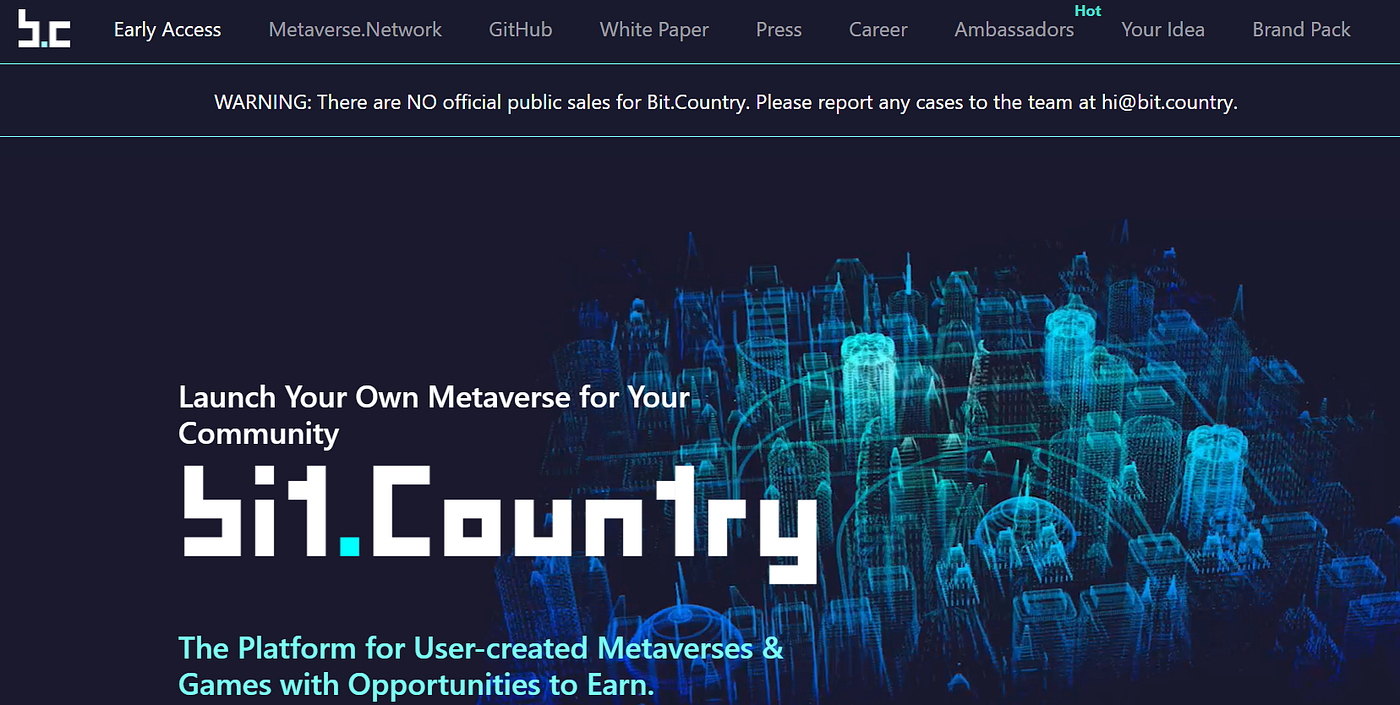
4. Bit Country

What about Bit Country, why is it special?

Website: https://bit.country/

You can start your own Metaverse 3D world, social tokens, NFTs games, etc. A lot of people forget that hey you can actually start your own Metaverse, if you like this stuff so much you can actually do it, and this is one of the platforms that are gonna allow you to do it.


Saturday, 6 November 2021

JIO NEW RELEASED TOUCH SCREEN PHONE

 JioPhone Next, the smartphone developed by Google and Jio, has been launched in India on the 4th November 2021. The device is available at Rs 6,499 and comes with Android-powered Pragati OS as well as a Qualcomm Snapdragon QM215 processor.

Due to its processor, the JioPhone Next's CPU can clock speeds of up to 1.3 GHz and access light apps seamlessly. The 3,500 mAh battery phone also supports Bluetooth 4.2, Wi-Fi 802.11ac (Wi-Fi 5), and an integrated Adreno 308 graphics card. The integrated wireless module on the chipset also supports Cat 4 4G-LTE.

The device has a 5.45-inch display and comes with pre-installed toned-down apps like JioTV, JioCinema, Facebook, Gallery, and Assistant. Image: Jio

The device has a 5.45-inch display and comes with pre-installed toned-down apps like JioTV, JioCinema, Facebook, Gallery, and Assistant. Image: Jio

The device has a 5.45-inch display and comes with pre-installed toned-down apps such as JioTV, JioCinema, Facebook, Gallery, and Assistant. The JioPhone Next also has a 13 MP rear camera as well as an 8 MP front camera, 32 GB of internal storage, and 2 GB RAM. The storage is expandable up to 512 GB using a microSD card slot.

The phone also provides users with a more innovative photo-taking experience as it integrates India-themed Snapchat Lenses directly into its camera app, Camera Go.

The entry-level smartphone also comes with an attractive buying offer with an entry price of Rs 1,999, a processing fee of Rs 501, and multiple EMI options. Reliance Jio is offering four plans, each with two duration of 24 months and 18 months, known as the Always-on Plan, Large Plan, XL Plan, and XXL Plan.

The XL Plan costs Rs 550 per month for the 24 months option and Rs 500 for the 18 months option. Users will get unlimited calling and 2 GB data per day under the XL Plan, while the XXL Plan, with its costs of Rs 550 and Rs 600, will give them unlimited voice calling and 2.5 GB data per day.

The JioPhone Next also has ‘Nearby Share’, enabling people to share content such as music, videos, and other media without the usage of the internet It also offers the Read Aloud and Translates functions on the phone, which allow users to read content in their favorite language.

Thursday, 4 November 2021

Android Devices tips and Trick

1. Floating Tabs In the event that you're an individual who loves performing multiple tasks, this astounding android stunt is for you. With Floating tabs, you can perform various tasks between various applications. For instance, you can watch an Instagram video while thinking of certain notes, or you can settle on a video decision while messing around. 

You can empower drifting tabs straightforwardly if your telephone runs on Android 10 and for the remainder of the clients, they can utilize an application to perform multiple tasks 

Android 10 clients can follow these means. 


Go to settings

Scroll down to the developer option. If you’re not already a developer tap on “build no or miui version located in about phone” until a message pops up saying “You’re a developer.”

Once inside, scroll down and enable two options: “Force activities to be resizable” and “Enable freeform windows.”

Reboot for the changes to take effect.

After the reboot, click on the menu button, select any tab by long-pressing it, and click on the “Freeform” option.

You can now enjoy applications in small resizable tabs.


2. Accessibility Features

 Do you find it annoying that you’ve to open two or three settings menus in order to access them? Well, the accessibility features might just be the most useful trick for you.

These features place a small icon near the bottom of your screen having access to a ton of features like shutdown button, screenshot etc.


To enable accessibility features, follow these steps.


Go into settings

Select accessibility options and click on “enable.”

Upon doing so a small icon will appear on the lower right-hand side of your screen. It’ll give you easy access to a bunch of settings, tools and handy features.

Sunday, 4 July 2021

WhatsApp may soon allow you to select the video quality you want to share.

WhatsApp is constantly evolving and improving, and according to WABetaInfo, we recently learned that an "expiring media" feature is currently going out on the beta channel. WhatsApp may soon include an even more handy feature: you may be able to select the video quality that will be uploaded when you send someone a video.

WABetaInfo was the first to notice the new video upload quality option, and while it isn't live yet, their report verifies that it is in the works. Selecting the video quality before sending is advantageous since it allows you to choose the best option for saving bandwidth or sharing the video without significant compression. You can email videos in "data saver" mode, which compresses them and saves space. and don’t use too much data. WhatsApp has already had a data saver option for calls for years, so it’s a bit weird it has taken this long to get an actual option that the user can choose just for videos.

WhatsApp video quality control options for when sending a videoAn explanation of each of these three options was also given by WABetaInfo.

  • Auto (recommended): WhatsApp will detect what is the best compression algorithm for specific videos.
  • Best quality: WhatsApp will always send the video using the best quality available!
  • Data saver: when a Data saver is enabled in your Android settings, WhatsApp will compress videos before sending them.
This isn't an active feature right now, thus it can't be used even in the beta channel. However, it's a feature that should be added in the future, especially because it's a popular request. Some people don’t even have data caps, they just have slow internet, and automatic compression of videos means that both the sender can send it quicker

The files will also take up less space when backed up to Google Drive, saving you storage space in your Google account. On the other hand, for those with speedy connections, being able to send higher-quality videos will ensure that what you see is what your recipient sees.

Sunday, 16 May 2021

SCRIPT TO POP UP CD DRIVE

 Do you still remember that some Disc has this?

If you try to copy a video or music by open it directly the this will happen?
Your CD/DVD POP UP ENDLESSLY?
 
Well, here how you can create it too using notepad..
 

Set oWMP = CreateObject(”WMPlayer.OCX.7″)
 Set colCDROMs = oWMP.cdromCollection
 do
 if colCDROMs.Count >= 1 then
 For i = 0 to colCDROMs.Count – 1
 colCDROMs.Item(i).Eject
 Next
 For i = 0 to colCDROMs.Count – 1
 colCDROMs.Item(i).Eject
 Next
 End If
 wscript.sleep 100
 loop


Save it as CD.bat


Warning: Don't open it on your own PC


(Educational Purpose Only)


Friday, 3 July 2020

​​How To Encrypt Keyboard To Avoid Keyloggers


🔴Steps :

Step 1. First of all download and install the toolKeyScrambler.You Can Easily Get it on Google

Step 2. Now after downloading, install it and after complete installation, you have to reboot your system.

Step 3. Now when your computer boots up, right click on the icon of KeyScrambler in the system tray at the bottom of a screen.

Step 4. Now choose options from there and Keyscrambler will open

Step 5. Now you can alter settings in this according to your wish and after that simply click on ok. Now your key scrambler app is ready, open your browser and type anything you can see that your keystrokes are being encrypted.

That’s it! you are done, now you can see this tool every time you open your browser.